SQL editor
The SQL page runs DuckDB SQL directly on your tables. Open it with Ctrl+3.
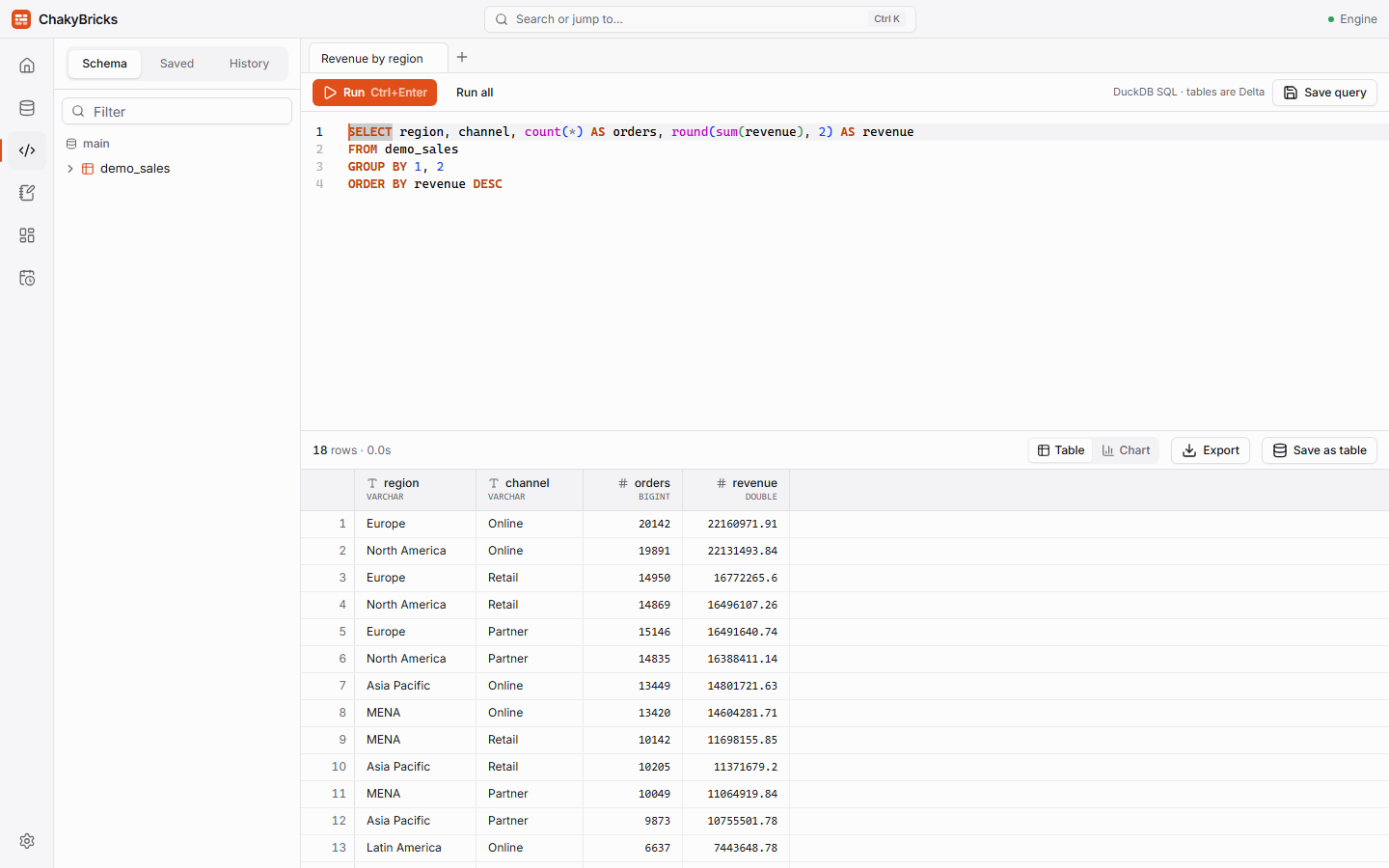
Writing and running queries
- Write a query and press Ctrl+Enter (or click Run). If you select some text first, only the selection runs.
- Run all (Ctrl+Shift+Enter) runs every statement in the editor, one after another. The result of the last statement is shown. Tables created earlier in the same run are visible to later statements.
- Cancel appears while a query is running and stops it.
- Autocomplete suggests tables, columns and SQL keywords as you type; press Ctrl+Space to open the suggestions.
- Tables in the
mainschema can be written without a prefix (FROM sales); other schemas useschema.table. - Open several queries in tabs with +. Your tabs and their text are restored when you reopen the app.
The sidebar has three tabs: Schema (tables and columns), Saved (your saved queries) and History (recent runs with status, duration and row count; the last 500 are kept, and Clear history empties them).
Results
The result grid is virtualized, so it stays fast with many rows. Columns can be resized.
- Rows shown and total. The grid loads the first rows of the result (10,000 by default; change it in Settings) and always shows the exact total row count. Exports are not limited by that number.
- Column statistics. Click a column header to see statistics over the full result: rows, nulls, approximate distinct count and, for numbers, min, max, mean, standard deviation and quartiles.
- Table / Chart. Switch to Chart for a quick bar, line, pie or scatter chart of the rows loaded in the grid. For polished charts use dashboards.
- Export. Export writes the full result to CSV or Parquet through a save dialog. The file is written by streaming, so very large results are fine.
- Save as table. Stores the result as a Delta table: Create table, Append rows or Replace table, depending on whether the table already exists.
Saved queries
Click Save query (or press Ctrl+S in the editor) to give the query a name. Saved queries appear in the Saved sidebar tab, where the ⋯ menu lets you rename, schedule or delete them. They can be used as the data source of dashboard tiles and can be scheduled as jobs. Names are unique, ignoring upper and lower case. Renaming a query keeps the dashboards that use it working.
Writing data
Besides SELECT, the editor runs these statements, which write Delta tables:
| Statement | Notes |
|---|---|
CREATE [OR REPLACE] TABLE [IF NOT EXISTS] t AS SELECT … |
Creates or replaces a table from a query. Column names are cleaned like in imports. |
INSERT INTO t SELECT … or INSERT INTO t VALUES … |
Appends rows. Columns are matched by position and converted to the table's types; a column list is not supported. |
DROP TABLE [IF EXISTS] t |
Deletes a table and its history. |
ALTER TABLE [IF EXISTS] t RENAME TO u |
Renames a table. |
EXPLAIN, DESCRIBE and SUMMARIZE also work. Everything else — UPDATE, DELETE, TRUNCATE, COPY, ATTACH, SET, PRAGMA, views, schemas, temporary tables and plain CREATE TABLE — is rejected with a message that lists what is supported. To change rows, write a new table with CREATE OR REPLACE TABLE … AS SELECT.
A write shows a success message (rows written, table version) instead of a grid. The catalog updates automatically.
Time travel
Time travel is not SQL syntax in DuckDB. Use the History tab on a table's page in the Catalog, or cb.table("sales", version=3) in a notebook.
Large queries
Queries use up to the memory limit from Settings (60% of your RAM by default) and spill to the tmp folder in your workspace when they need more. A cap on that spill space keeps a runaway query from filling your drive: it fails with "Not enough disk space for this query" instead. See Troubleshooting.